Media Sync Editor
This guide is about the Media Sync Editor we provide as part of our Playground.
To use alphaTab together with external media like audio or video backing tracks, it is often needed to somehow synchronize the two parties due to inconsistencies. It is rather rare that the music sheet and the used backing track 100% align in timing. There might be intros, outros slight time differences which need to be accommodated for.
The Media Sync Editor provides an online editor for exactly this task. You can load your music sheet and your backing track. The editor then offers features to eliminate potential differences of the two.
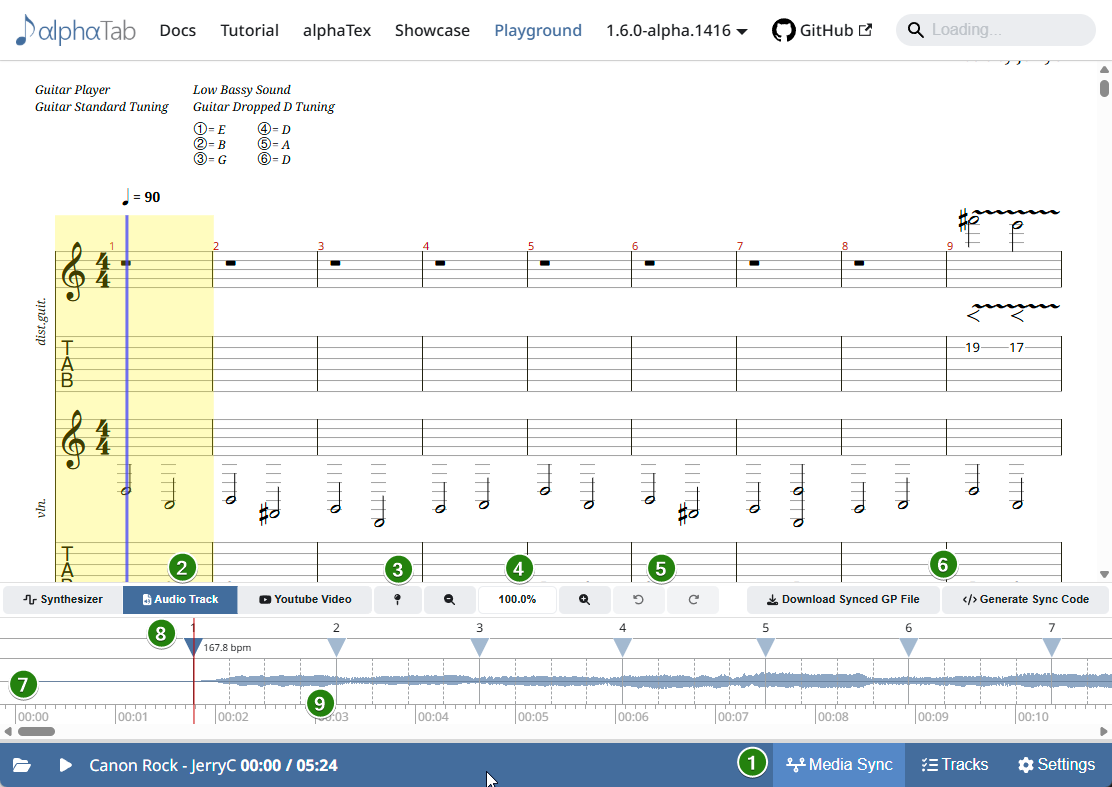
The editor
Open the Playground, load your file (via Open file or by dropping it onto the page) and click Media sync in the header. The editor opens as a drawer below the notation; drag its top edge to resize it. Closing and reopening the drawer keeps your sync points, undo history and zoom until you open a different file.
Source
The Synth / Audio / YouTube switch selects what the notation plays with and is synchronized to:
- Synth plays the notation with the built-in synthesizer. There is nothing to synchronize.
- Audio plays the file's backing track. Files that bring their own audio (Guitar Pro 8 files with an audio track) use it directly; for any other file, load a local audio file with the upload button next to the switch.
- YouTube plays a YouTube video next to the notation. Paste the link of the video; it plays in YouTube's privacy-enhanced embed.
If the file has no sync points yet, the editor creates an initial set as soon as the media is ready (see Synchronizing Songs).
Timeline
The timeline shows the media's time axis with the playback position as a red line. For audio it also shows the waveform, which makes it easy to spot where bars start. YouTube does not give access to the raw audio, so there is no waveform for videos.
The markers on the timeline are the positions alphaTab can synchronize:
- Bar markers (taller ticks, labelled with the bar number) sit at the start of every played bar. With repeats, every repetition of a bar has its own marker.
- Beat markers (short ticks) sit on every beat of the time signature. They are hidden when you zoom out far.
- Sync points are markers that are pinned to a media time. They are drawn as full-height lines with their bar number. All other markers are placed automatically between the sync points, following the tempo of the notation.
The first and last marker are always sync points.
Editing sync points
- Drag a marker to the spot in the media where it is played. Dragging any marker turns it into a sync point. A sync point cannot be moved past its neighbouring sync points.
- Double-click a marker (or press Enter) to add or remove a sync point.
- Click the timeline or a marker to seek the media there.
- With a marker focused, ←/→ select the previous or next marker, Shift+←/→ jump between sync points, and Alt+←/→ move the selected marker by 10 ms (100 ms with Shift).
- Undo/redo (Ctrl+Z / Ctrl+Shift+Z) step through your edits.
- Auto sync replaces all sync points with the initial set again; the reset button removes all of them, so the media plays 1:1 with the tempo of the notation.
- Zoom with the zoom buttons, fit the whole media into view, or hold Ctrl while using the mouse wheel.
Export
The Export menu of the editor offers:
- Synced Guitar Pro file (audio only): a Guitar Pro file with the audio and the sync points embedded. alphaTab plays it with the backing track without any further code.
- Sync point code: the sync points as TypeScript, C#, Kotlin or alphaTex, with an example of how to apply them in your app (see Sync points at runtime).
- Write into alphaTex (alphaTex files only): replaces the
\synclines of the alphaTex in the editor with the current sync points, so they are part of the source and of shared Playground links.
Synchronizing Songs
The more complex the song, the more time is needed for synchronizing it properly. But assuming that your music notation and your audio should generally match the effort of synchronizing can be reduced drastically if done correctly.
The first two most important steps are applied by the editor when you load an audio file:
- Create Sync Points according to the audio start and end
- Create Sync Points for all tempo changes and place them according to the played speed.
If the music notation and audio match, you typically do not need any more sync points than these to get already a decent result. If there are some further inaccuracies they might need correction. Typical problems and solutions are:
Problem: In live recordings when the band improvises. In this case obviously the music notation might not match if they decide to stretch the solo or repeat a chorus.
Solution 1: Best would be to adjust the music sheet to match again the actually played parts.
Solution 2: Pick any bar(s) and make them artificially slower/faster to pick up the right spot when the music sheet matches again. e.g. you might use a time signature marker to have the bar mostly shown correct, and then stretch this bar as long as needed until the band continues normally.
Problem: There are instruction parts where a teacher might explain something inbetween.
Solution 1: If you manually control the external media synchronization (via IExternalMediaHandler) you could adjust the time reported to alphaTab so that it quasi stops playing and moving the cursor.
Solution 2: Add an empty bar in the song for the time of this explanation and then stretch this part accordingly with sync points.
Solution 3: Stretch an existing bar by using the time signature markers.
Problem: The audio is from a cover which is not played accurately and there are slips in tempos. This can be on purpose for artistic purposes (e.g. swing style or improvisation) or accidentally.
Solution: First add bar markers before and after the affected bar. Then additionally place time signature markers according to the real playback.
Generally it is discouraged to add too many markers (e.g. for every bar). It's unlikely that the tempo changes constantly and needs adjustment. Rather pick a range where you expect the tempo to be roughtly equal, mark it with two sync points and place them accordingly.
The general recommendation to place markers correctly is:
- Seek the player to some bars before the spot where the marker should roughly be. This can be done by clicking at the right spot in the music sheet or in the wave form.
- Start the playback but rather ignore what you see on the cursor and music sheet. Listen closely and watch the playback cursor in the waveform.
- When the right note/chord is played remember the position on screen.
- Move the sync point marker to the spot.
- Repeat the playback again and check if the spot matches. If required zoom in and tweak the precise position a bit.
- Seek the player back to the previous sync point and let the song play until your new sync point.
- Check if the cursor and audio now match up.
Repeat this for all markers until things match up. Then continue with any fine-tuning on time signature marker level if required.
You can lower the playback speed with Tempo in the Settings panel if songs are too fast.